



In this guide
Choose the time type first
Attendance, leave, sickness, off-site work and requests are different types. A leave request is not yet approved leave. The personal Absent flag does not replace an appropriate time entry either.
Prepare an entry
- Open the authorised time area for the correct employee.
- Select the appropriate time type.
- Check start, end and any half-day start or end dates.
- Check comments and, for attendance, breaks in minutes.
- Save and read the reloaded entry.
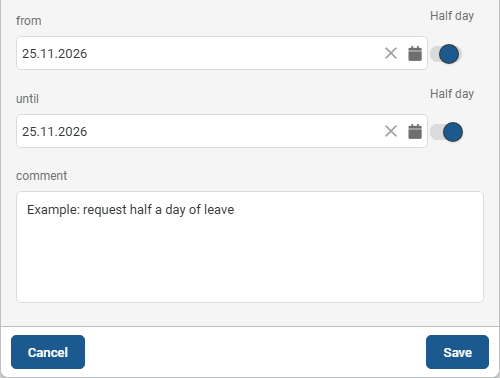
Half days and hours
For a single half day, the start and end flags are not independent. For several days, the boundary dates may be handled separately. Hour-based types instead use a number of hours rather than the same date-range structure.
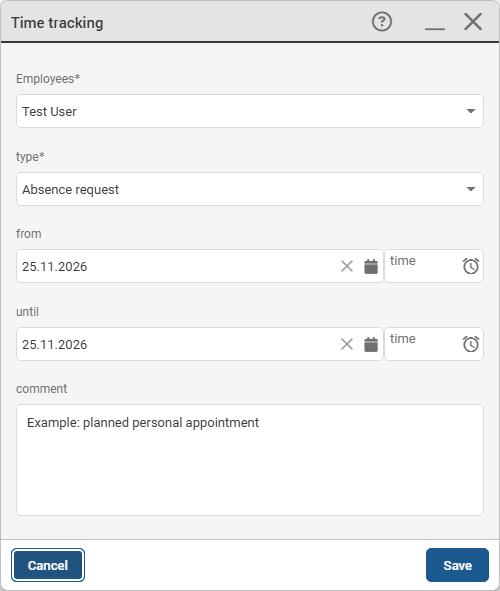
Locked entries
Times already processed and certain confirmed time types are locked in the normal dialog. Broader editing rights do not automatically override this lock. Have any corrections to previously processed times reviewed appropriately.
Deleting is not a complete reversal
Deactivating confirmed leave can return calculated leave days. It does not automatically reverse an analysis report, every time-account effect or payroll processing. Check the time list and account separately.
