



In this guide
Search before creating a contact
Open Contacts, or the appropriate saved filter, and search using the details you already have. The contact is the shared reference for communication, transactions and media. Creating a duplicate splits this information and should not be the first response to an empty search result.
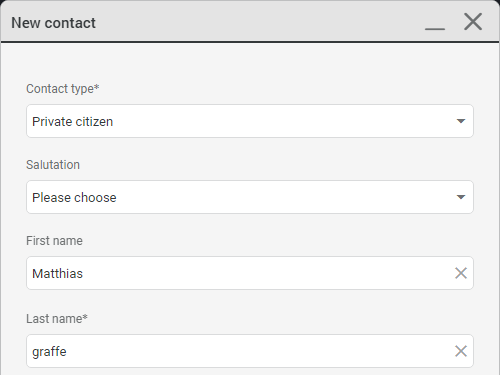
Enter a new contact
- Open the new-contact form using the plus button.
- Choose the appropriate contact type. Company, private customer, supplier and inventory records have different purposes and fields.
- Enter the known master data and check names and communication details.
- Review the offered customer-advisor or team assignment.
- Save and then open the actual saved record.
If JustCRM reports an existing contact, inspect that result before creating another. This message does not automatically merge two contacts.
Understand the tabs
Contact, Master data, Status, Media and Configurations show different information about the same contact. Contact type and permissions affect which tabs are available. Inventory, for example, is not an ordinary sales customer.
Editing and deleting
Changing master data later does not automatically replace documents already generated. Before removing a contact, consider open transactions and follow-up actions. Normal contact deletion makes the contact inactive; it does not destroy every associated document and file.
Tip: enter only details you actually know. Example addresses and invented payment information do not belong in real customer records.
